


6.43.1. VoiceMail Example 1
In this basic example we will show you:
Requirements - this tutorial starts in the following setup:
We are going to work from a scratch for this example. This means that we will begin with an empty voicemail.conf file. If you want to follow this tutorial you should back up your configuration file. You can do this by typing `cd /etc/asterisk/ && mv voicemail.conf ~voicemail.conf`
How to check for current voicemail accounts?
The easiest way to check which voicemail accounts is via the Asterisk console. Connect to your Asterisk console (via the command `asterisk -r`) and type: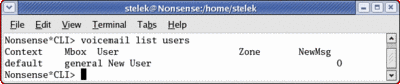
Creating voicemail.conf from a scratch.
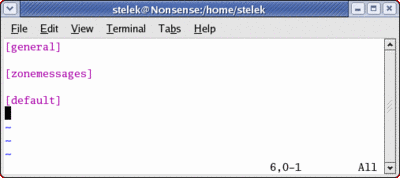
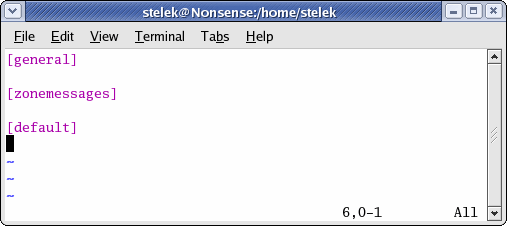
We presume that you don't have voicemail.conf in our configuration folder. We can create it as every common file. We will use the command `touch /etc/asterisk/voicemail.conf`. After we execute this command we will add three important lines in our voicemail.conf. We will declare [general], [zonemessages] and [default]. The file should look like this:
Adding global options. We won't use all the keywords that voicemail.conf provide us because we are making very simple tutorial. Since we have very few voicemail accounts, we can a be little bit more generous in some options. Here are some of the keywords that we are going to add:
This scenario is about a small company, so we will need only one timezone. Let's add it
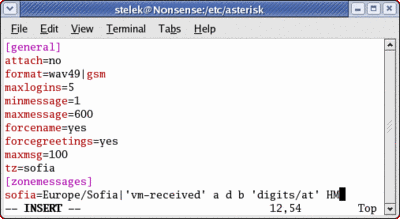
Notice that we have added one more option to the general section - `tz=sofia`. This will set all accounts that we create, in the timezone `sofia`.
Now let's create three new contexts in which we are going to create our voicemail accounts. We will add these contexts after the general section: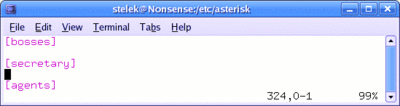
Now let's add the voicemail accounts. Notice that the "bosses" in our imaginary company has two "phones" (an IAX2 and a SIP), but have only one mailbox. It is time to reload our Asterisk configuration and check the differences. Connect to Asterisk by typing `asterisk -r`. Then type `reload`. Now let's check the accounts. Type:
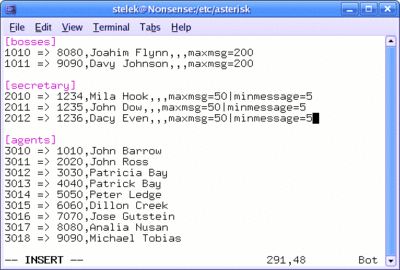
Now let's add some options per user. For example our "bosses" should have extended max messages capacity. The secretaries should have an increased minimal length of the messages (in order to be saved). We can easily achieve this by adding options per-accounts:
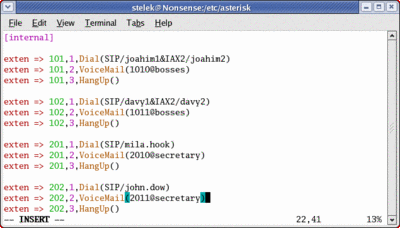
It is time to activate our mailboxes. To do this we will have to modify our dialplan. Our first task is to make possible the recording of messages. We will use VoiceMail application in order to achieve this task.
The second step is make possible for every user to check his/hers voicemail account. We will add some new extensions in order to achieve this step. We will use VoiceMailMain application for this purpose.
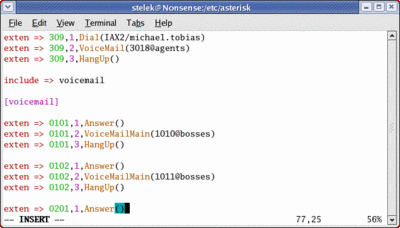
We have created new context (we have named it [voicemail]) in extensions.conf but we have included it into [intenal] context, so everyone will be able to dial the extensions in the new context.
With this final step we have finished this example. Here are the files after the final editions:
- iax.conf
- sip.conf
- extensions.conf
- voicemail.conf
We will use this example as start point for our next example example.
* how to check for current voicemail accounts
* how to create a new voicemail.conf from a scratch
* how to add a new timezone
* how to add global keywords and options
* how to add new contexts
* how to add new users
* how to add options per-user
* how to edit your dialplan in order to activate voicemail functionality
* how to check your voicemail
* how to create a new voicemail.conf from a scratch
* how to add a new timezone
* how to add global keywords and options
* how to add new contexts
* how to add new users
* how to add options per-user
* how to edit your dialplan in order to activate voicemail functionality
* how to check your voicemail
Requirements - this tutorial starts in the following setup:
you have a working Asterisk server
you have registered SIP and/or IAX2 accounts - we will run this tutorial with the following accounts:
you have registered SIP and/or IAX2 accounts - we will run this tutorial with the following accounts:
- joahim1 - SIP
- joahim2 - IAX2
- davy1 - SIP
- davy2 - IAX2
- mila.hook - SIP
- john.dow - SIP
- dacy.even - SIP
- john.barrow - IAX2
- john.ross - IAX2
- patricia.bay - IAX2
- patrick.bay - IAX2
- peter.ledge - IAX2
- dillon.creek - IAX2
- jose.gutstein - IAX2
- mnalia.nusan - IAX2
- michael.tobias - IAX2
you already have extensions for your SIP and/or IAX2 accounts- joahim2 - IAX2
- davy1 - SIP
- davy2 - IAX2
- mila.hook - SIP
- john.dow - SIP
- dacy.even - SIP
- john.barrow - IAX2
- john.ross - IAX2
- patricia.bay - IAX2
- patrick.bay - IAX2
- peter.ledge - IAX2
- dillon.creek - IAX2
- jose.gutstein - IAX2
- mnalia.nusan - IAX2
- michael.tobias - IAX2
101 - calls joahim1 and joahim2
- 102 - calls davy1 and davy2
- 201 - calls mila.hook
- 202 - john.dow
- 203 - dacy.even
- 301 - john.barrow
- 302 - john.ross
- 303 - patricia.bay
- 304 - patrick.bay
- 305 - peter.ledge
- 306 - dillon.creek
- 307 - jose.gutstein
- 308 - mnalia.nusan
- 309 - michael.tobias
Here are the initial configuration files that we are going to use:- 102 - calls davy1 and davy2
- 201 - calls mila.hook
- 202 - john.dow
- 203 - dacy.even
- 301 - john.barrow
- 302 - john.ross
- 303 - patricia.bay
- 304 - patrick.bay
- 305 - peter.ledge
- 306 - dillon.creek
- 307 - jose.gutstein
- 308 - mnalia.nusan
- 309 - michael.tobias
We are going to work from a scratch for this example. This means that we will begin with an empty voicemail.conf file. If you want to follow this tutorial you should back up your configuration file. You can do this by typing `cd /etc/asterisk/ && mv voicemail.conf ~voicemail.conf`
How to check for current voicemail accounts?
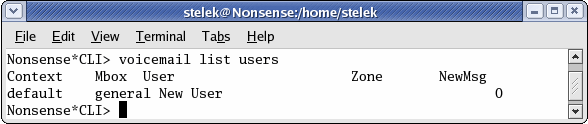
The easiest way to check which voicemail accounts is via the Asterisk console. Connect to your Asterisk console (via the command `asterisk -r`) and type:
voicemail list users - to list all users
voicemail list users for AAAA - in order to list only the users from AAAA context
voicemail list users for AAAA - in order to list only the users from AAAA context
Creating voicemail.conf from a scratch.
Adding global options. We won't use all the keywords that voicemail.conf provide us because we are making very simple tutorial. Since we have very few voicemail accounts, we can a be little bit more generous in some options. Here are some of the keywords that we are going to add:
    attach=no            ; we won't send notification messages
    format=wav49|gsm    ; we will save the audio message in wav49 and gsm formats
    maxlogins=5        ; we are setting the maximum invalid login attempts before disconnecting the call
    minmessage=1        ; messages with length less than one seconds won't be saved
    maxmessage=600    ; we are setting the maximum length of messages to ten minutes
    forcename=yes        ; we will force every 'new user' to record his/hers name
    forcegreetings=yes    ; we will force every 'new user' to record his/hers greeting
    maxmsg=100        ; mailbox's max messages capacity
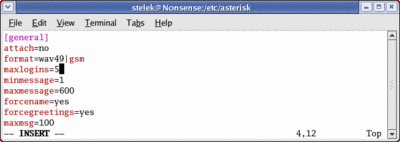
When we set such keywords in the [general] area, every user will receive these options (if the the current option is not overridden per-user).
This scenario is about a small company, so we will need only one timezone. Let's add it
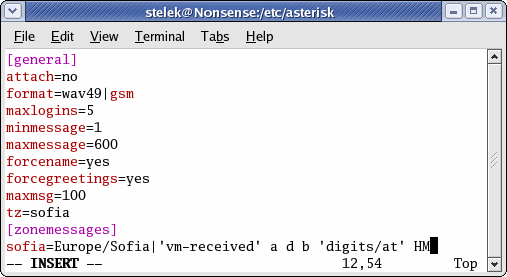
Notice that we have added one more option to the general section - `tz=sofia`. This will set all accounts that we create, in the timezone `sofia`.
Now let's create three new contexts in which we are going to create our voicemail accounts. We will add these contexts after the general section:

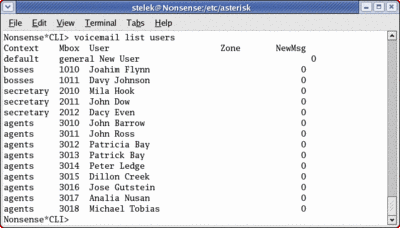
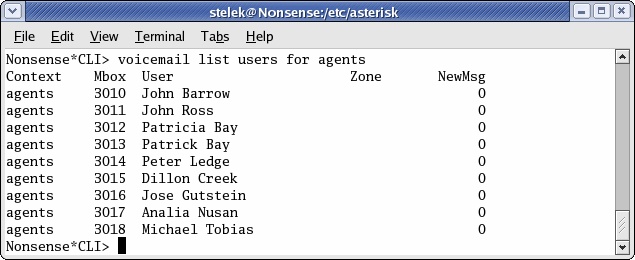
Now let's add the voicemail accounts. Notice that the "bosses" in our imaginary company has two "phones" (an IAX2 and a SIP), but have only one mailbox. It is time to reload our Asterisk configuration and check the differences. Connect to Asterisk by typing `asterisk -r`. Then type `reload`. Now let's check the accounts. Type:
`voicemail list users` - to list all mailbox accounts
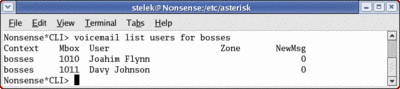
`voicemail list users for bosses` - to list all mailboxes in [bosses] context
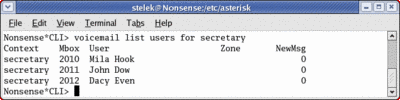
`voicemail list users for secretary` - to list all mailboxes in [secretary] context
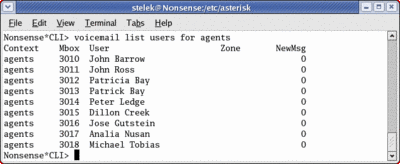
`voicemail list users for agents` - to list all mailboxes in [agents] context
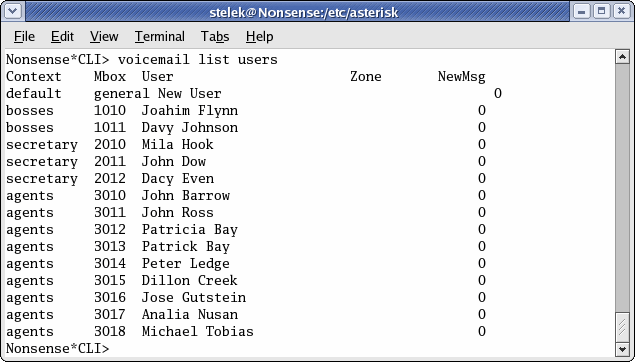
`voicemail list users for bosses` - to list all mailboxes in [bosses] context
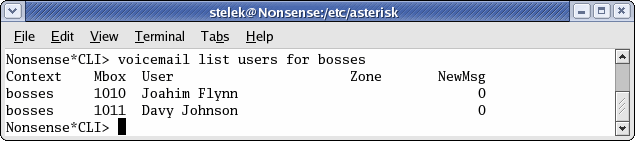
`voicemail list users for secretary` - to list all mailboxes in [secretary] context
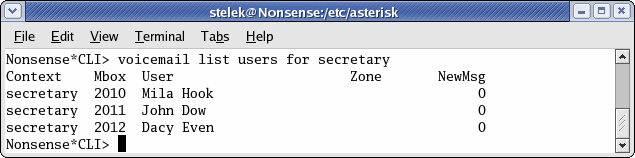
`voicemail list users for agents` - to list all mailboxes in [agents] context
Now let's add some options per user. For example our "bosses" should have extended max messages capacity. The secretaries should have an increased minimal length of the messages (in order to be saved). We can easily achieve this by adding options per-accounts:

It is time to activate our mailboxes. To do this we will have to modify our dialplan. Our first task is to make possible the recording of messages. We will use VoiceMail application in order to achieve this task.
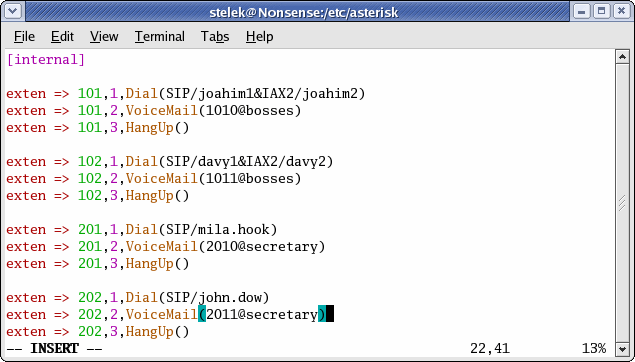
The second step is make possible for every user to check his/hers voicemail account. We will add some new extensions in order to achieve this step. We will use VoiceMailMain application for this purpose.
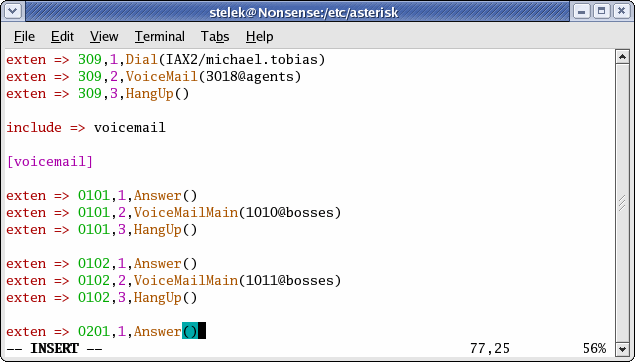
We have created new context (we have named it [voicemail]) in extensions.conf but we have included it into [intenal] context, so everyone will be able to dial the extensions in the new context.
With this final step we have finished this example. Here are the files after the final editions:
- iax.conf
- sip.conf
- extensions.conf
- voicemail.conf
We will use this example as start point for our next example example.
| Add Comment |
Latest Headlines:
-
T.38 faxing with Zoiper 2.15 is now easier than ever
section: voip software
-
Asterisk 1.4.21 Released
section: Asterisk
-
Asterisk 1.4.20 Released
section: Asterisk
-
Asterisk 1.4.20-rc2 Released
section: Asterisk
-
Asterisk 1.4.20-rc1 Now Available
section: Asterisk
- News Archives (older news)
Latest Tutorials:
-
Sending Fax from Zoiper to Zoiper using T.38
added 08/Dec/2008 18:16
-
VMAuthenticate (dialplan application)
added 01/Mar/2008 15:57
-
Siptronic ST-530
added 06/Nov/2007 17:57
-
Siemens C455 IP hardphone
added 05/Nov/2007 10:24
-
Zoiper
added 22/Oct/2007 17:53
Latest Comments:
-
https://letterboxd.com/kinostream4k/list...
tutorial: Request to schedule in the past?!?!
-
https://letterboxd.com/kinostream4k/list...
tutorial: Request to schedule in the past?!?!
-
https://letterboxd.com/kinostream4k/list...
tutorial: Request to schedule in the past?!?!
-
https://letterboxd.com/kinostream4k/list...
tutorial: Request to schedule in the past?!?!
-
https://letterboxd.com/jordiekity/list/o...
tutorial: Configuring IP Phones for use with Asterisk