Idefisk is a softphone client for IAX or IAX2. It can be obtained from
for free. It is supported from Windows operating system. To use the phone you must have an installed Asterisk PBX server.
Let us first register a user in Asterisk. As this is IAX softphone we have to do this in iax.conf then we will register an extension for the user in extensions.conf.
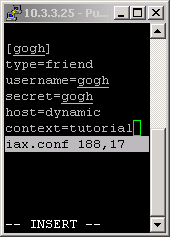
As you see I register user named gogh with password gogh, dynamic host IP address and join it to the tutorial context.
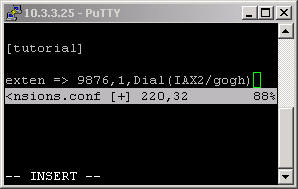
Here I register the extension 9876 which to dial the user gogh.
Note: Remember to reload the Asterisk from CLI if you want the changes to take effect.
After you download the phone it will look like this:
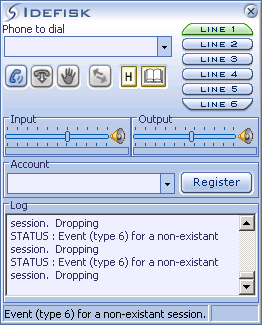
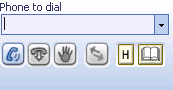
No accounts will be available as nobody is still registered. At the top of the phone is the Dialing field – you can type the number there. All dialed numbers can be selected from the dropdown box. Below the dialing field are the action buttons, from left to right – Dial, Hang Up, Hold, Transfer, History and Address Book. You can see the name when holding the mouse pointer over the button for a second.
On the right upper side you can see the phone line, six at all and you can switch between them by clicking over the selected line.

Then you see the volume controls. Input is the voice channel coming from the microphone and Output is the voice channel coming to the speakers. The power can be adjusted by moving right or left the sliders. On the left of each field – Input and Output you can see a speaker and when you click over it you disabled or enable the channel. So this way you can mute the microphone or the speakers.

After this you see the field to choose user and a button for registering new user. You can select already registered users from the dropdown box.

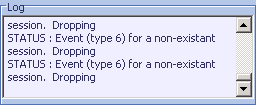
At the bottom there is a text area showing information for the user status.
When the softphone is running a small icon appears in your taskbar. Right click on it and a settings menu pops up.
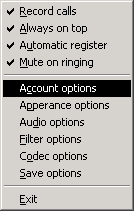
Record call - an option for recording the calls, you can disable it by unchecking it.
Always on top - the application is always on top, the phone is always on focus.
Automatic register - this registers automatically the default user if such one exists.
Mute on ringing - mutes the sound in the speaker while ringing.
Account options

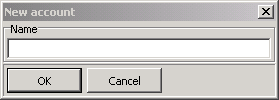
Here you can add new user, delete existing and setting some user for default one. To register a new user, click the New button and the following window appears.
I will register the user gogh who is already registered in Asterisk. After filling the field for Host, Username, Password, Called ID and Number the Account options look as follow.
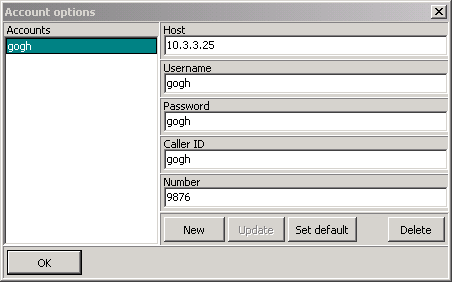
Click OK and remember to click also to Save options in order to save the changes.
Appearance options
Here you can change the outlook of the softphone.
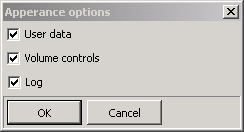
Here you can hide or show the Volume controls (Input and Output tools), User data (Account and Register) and the Log text area. If you make any changes remember to save them from Save options.
Audio options
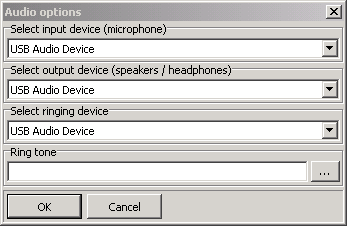
Here you can adjust your Input and Output sound device. The phone has to recognize them automatically. Here it is set to USB but in your case it might be VIA for example.
Filter options
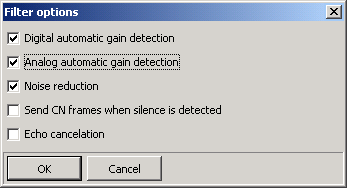
Noise reduction – reduces the secondary noises in the voice channel.
Send CN frames when silence is detected – sends empty frames if silence detected.
Echo cancellation – if echo appears in the channel check this option to suppress it.
Codec options

Available codecs are GSM, U-Law, A-Law and Speex. It is preferable to check all of them. The options below the codecs are just for Speex audio codec.
Enhanced decoding - perceptual enhancement for decoder.
Quality - set quality (0-9).
Bitrate - codec bitrate in Kbps. For Speex it can be between 2 and 44 Kbps.
Complexity - algorithmic complexity, higher numbers take more CPU for better quality.
Default value is 3.
Save options
Use this every time you make any changes.