


6.1.2.79. SendURL (dialplan application)
1. SendURL - this application allows you to send a hyperlink to a PBX user
NOTE: This application is valid for Asterisk version 1.0.9 and above.
Syntax:
List of the possible options
Purpose and usage
Prerequisites
Asterisk PBX configurations
iax.conf Configurations

extensions.conf Configurations
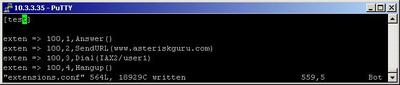
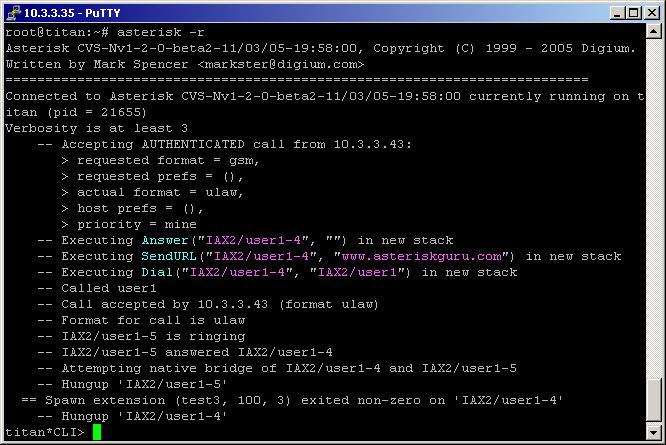
2. Screenshots of what you can see on your Idefisk and on the CLI of the Asterisk PBX


3. Additional information
4. Uploaded files
5. Similar dialplan applications
NOTE: This application is valid for Asterisk version 1.0.9 and above.
Syntax:
SendURL(URL[|option]) ; write as argument the URL you want to send
The result will be returned in the SENDURLSTATUS channel variable. There are four possible values:
SUCCESS - URL successfully sent to client
FAILURE - Failed to send URL
NOLOAD - Clien failed to load URL (wait enabled)
UNSUPPORTED - Channel does not support URL transport
SUCCESS - URL successfully sent to client
FAILURE - Failed to send URL
NOLOAD - Clien failed to load URL (wait enabled)
UNSUPPORTED - Channel does not support URL transport
List of the possible options
wait - if this option is set the execution will continue only after a confirmation that the URL has been loaded
Purpose and usage
The purpose of this application is to send an URL address to the caller. So it could be used for an advertising. The caller dials the number of your company and he/she receives the URL of one of your departements or for example of one of your partners.
Below, we will give you an example.
Below, we will give you an example.
Prerequisites
To use this application you need a working Asterisk PBX with registered users in iax.conf, sip.conf or mgcp.conf(It depends on which protocol you would like to use) and made extensions.
To see how the application works we recommend you to use our IAX softphone Idefisk. You can download it from here. Please also read our tutorial to learn how to configure it to work with Asterisk PBX.
To see how the application works we recommend you to use our IAX softphone Idefisk. You can download it from here. Please also read our tutorial to learn how to configure it to work with Asterisk PBX.
Asterisk PBX configurations
NOTE: This is only an example of what for you can use this application. Of course you can use it and for other things.
iax.conf Configurations
We need one registered user in the iax.conf file. This is because we are going to use the IAX2 protocol. If you want to use other protocol such as SIP or MGCP, you have to do the configurations below respectively in sip.conf or mgcp.conf.
So, we have registered the user user1.
Type=friend means that this user can make and receive calls. Host=dynamic means that the IP is not static but dynamic through a DHCP server. Allow=all means that the line which this user will use, could support all audio codecs. Context=test - this shows that this user is working with the extensions in this context of the configuration file extensions.conf.
Type=friend means that this user can make and receive calls. Host=dynamic means that the IP is not static but dynamic through a DHCP server. Allow=all means that the line which this user will use, could support all audio codecs. Context=test - this shows that this user is working with the extensions in this context of the configuration file extensions.conf.
extensions.conf Configurations
Now lets take a look at the extensions.conf file.
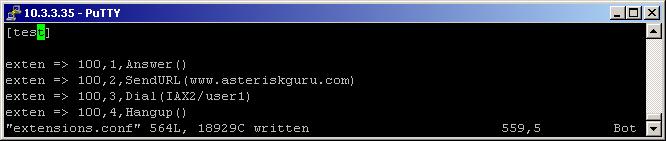
On the picture above you can see our extensions.conf file.
When somebody dials the number 100, the call will be answered by the Answer application.
The next executed extension will be the one with the SendURL application. In our case we have set in the brackets the web address of our web site - www.asteriskguru.com. It will be send to the caller.
Now, here we have an interesting moment. The usage of Idefisk gives you the possibility to choose, whether do you want the web address to be opened into your web browser automatically or you prefer a new window with the link to the web address to appear on the screen.
This option could be selected by pressing right button on the icon of the Idefisk in the task bar and then select General Options. The option is Automatically open URLs

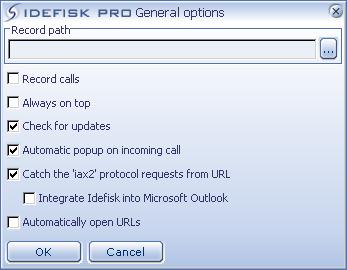
The next extension will be executed immediately. In our case this is the one with the Dial applications. Thanks to it the call will be connected to the user user1.
However if you set the wait option in the SendURL application, the next extension will be executed only, when the the URL is opened in your browser.
In order to be sure that the Asterisk PBX will hang up the line after the conversation is over, it is a good idea to make an extension for hanging up the line.
When somebody dials the number 100, the call will be answered by the Answer application.
The next executed extension will be the one with the SendURL application. In our case we have set in the brackets the web address of our web site - www.asteriskguru.com. It will be send to the caller.
Now, here we have an interesting moment. The usage of Idefisk gives you the possibility to choose, whether do you want the web address to be opened into your web browser automatically or you prefer a new window with the link to the web address to appear on the screen.
This option could be selected by pressing right button on the icon of the Idefisk in the task bar and then select General Options. The option is Automatically open URLs
The next extension will be executed immediately. In our case this is the one with the Dial applications. Thanks to it the call will be connected to the user user1.
However if you set the wait option in the SendURL application, the next extension will be executed only, when the the URL is opened in your browser.
In order to be sure that the Asterisk PBX will hang up the line after the conversation is over, it is a good idea to make an extension for hanging up the line.
2. Screenshots of what you can see on your Idefisk and on the CLI of the Asterisk PBX
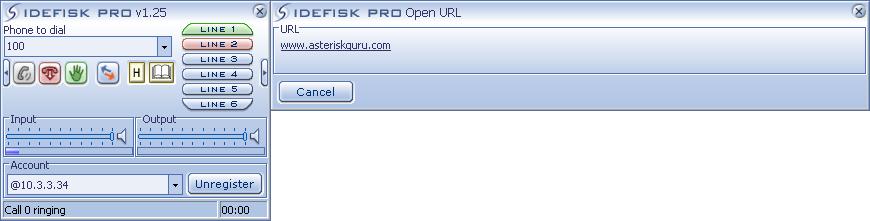
3. Additional information
For more information about extensions.conf you can check here.
For more information about iax.conf you can check here.
This application is tested with our IAX softphone Idefisk. You can download it from here. For more information about this softphone please read our tutorial.
If you would like to test this application with the SIP channel you can read our tutorials about the SIP Softphones to learn how to configure them to work with Asterisk PBX
For more information about iax.conf you can check here.
This application is tested with our IAX softphone Idefisk. You can download it from here. For more information about this softphone please read our tutorial.
If you would like to test this application with the SIP channel you can read our tutorials about the SIP Softphones to learn how to configure them to work with Asterisk PBX
4. Uploaded files
5. Similar dialplan applications
| Add Comment |
Latest Headlines:
-
T.38 faxing with Zoiper 2.15 is now easier than ever
section: voip software
-
Asterisk 1.4.21 Released
section: Asterisk
-
Asterisk 1.4.20 Released
section: Asterisk
-
Asterisk 1.4.20-rc2 Released
section: Asterisk
-
Asterisk 1.4.20-rc1 Now Available
section: Asterisk
- News Archives (older news)
Latest Tutorials:
-
Sending Fax from Zoiper to Zoiper using T.38
added 08/Dec/2008 18:16
-
VMAuthenticate (dialplan application)
added 01/Mar/2008 15:57
-
Siptronic ST-530
added 06/Nov/2007 17:57
-
Siemens C455 IP hardphone
added 05/Nov/2007 10:24
-
Zoiper
added 22/Oct/2007 17:53
Latest Comments:
-
Metabolic Freedom empowers you to take c...
tutorial: Asterisk Warnings
-
<a href=https://optovolokno-internet.ru/...
tutorial: VMAuthenticate (dialplan application)
-
______ ______ __ _________ _____ _ ____...
tutorial: DrayTek Vigor 2900V - broadband security voip router
-
https://bnd.lc/AfezR
https://bnd.lc/iFx...
tutorial: SIP with NAT or Firewalls
-
I want to recommend you all to a lottery...
tutorial: Asterisk NOTICE's WARNINGS and ERRORS